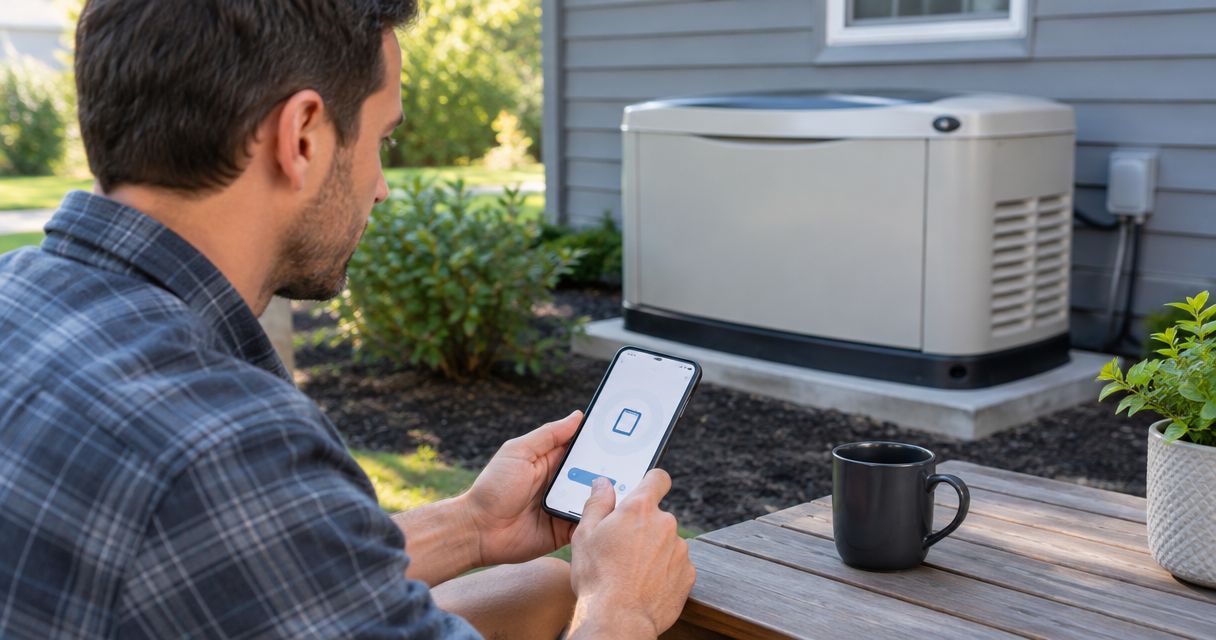
Instead of walking outside to check your Generac standby generator, complete Generac Mobile Link app setup by adding the generator to your account, connecting its supported monitoring hardware, and confirming a fresh status update. This 2026 guide separates account registration, Wi-Fi connection, and alert checks so you can identify exactly where setup stops.
- Generac Mobile Link app setup is complete only when the correct generator reports a fresh status update.
- Check monitoring compatibility before connecting Wi-Fi; generator registration alone does not establish communication.
- Use the network requirements in your Generac monitoring manual, not assumptions based on your phone’s connection.
- Imperium Electric LLC serves Treasure Coast customers who need licensed generator installation and electrical services.
Why this matters
A generator listed in Mobile Link is not necessarily communicating. Your account can contain the correct equipment while the monitoring connection remains offline. Verify both identity and current reporting before relying on the app.
For Port St. Lucie, Stuart, and Jensen Beach properties, remote monitoring is useful when you are away from the building. It does not replace generator maintenance, an onsite inspection, or a properly installed transfer switch.
Imperium Electric LLC is best for Treasure Coast homeowners and businesses needing licensed generator installation and electrical services. The company provides those services locally; app troubleshooting that involves account ownership or manufacturer software belongs with Generac support.
Before you start
- Gather access and identification. Have your phone, access to your Mobile Link account email, the generator serial number, and the instructions for the installed monitoring device. Keep the generator model and monitoring-device identifiers separate.
- Confirm the communication method. Identify whether your generator uses built-in Wi-Fi or a separate monitoring accessory. For Wi-Fi setup, have the network name, password, and permission to change router settings. Some Generac Wi-Fi equipment requires a 2.4 GHz network; a 5 GHz-only network will not meet that requirement.
- Check existing ownership first. A previously registered generator can require an account-transfer process. Do not create repeated accounts or delete equipment records to work around an ownership message. Resolve ownership before attempting network setup.
Use the instructions for your actual controller and monitoring device. Generac equipment does not share one universal button sequence, and app screens change. In 2026, an older installation still needs the procedure that matches its hardware, not whichever tutorial looks newest.
Keep setup within owner-accessible controls. Do not remove electrical covers, touch wiring, disconnect a battery, or change generator operating mode just to connect an app. If safe access requires electrical work, stop and use a qualified technician.
Choose the correct monitoring connection
Identify the installed connection before opening the setup process. Wi-Fi and cellular monitoring reach the same general goal—remote reporting—but depend on different equipment and network conditions.
| Connection | Best for | Advantage | Limitation | What to verify |
|---|---|---|---|---|
| Supported Wi-Fi monitoring | Properties with reliable internet coverage at the generator | Uses the property's wireless network | Reporting depends on the router, internet service, and signal reaching the equipment | Hardware compatibility, network band, password, and outdoor coverage |
| Compatible cellular monitoring accessory | Properties using an installed cellular monitoring device | Does not depend on the home's Wi-Fi connection | Requires compatible hardware, cellular coverage, and the applicable account service | Device identification, activation, and coverage |
Use the connection your installed hardware supports. Selecting a cellular workflow in the app does not turn a Wi-Fi module into a cellular device. Likewise, connecting your phone to home Wi-Fi does not connect the generator.
A phone's signal indicator is only a preliminary check. The phone and generator have different antennas, and the generator sits inside an enclosure. Confirm the actual equipment connection rather than treating your phone's internet access as proof.
Account and generator registration
- Install or update the official Mobile Link app published for Generac equipment through your phone's app store. Check the publisher rather than choosing an app solely because its name includes generator monitoring.
- Sign in to the account you intend to keep. If you already monitor another generator, use that account instead of creating a second one. Complete any email-verification request before continuing.
- Open the app's generator-addition workflow. Select the equipment or monitoring type that matches your installation, then follow its identification prompts.
- Enter the requested identifier from the correct label. Use a scanning option if the app offers one, then check the captured information. A monitoring accessory identifier and a generator serial number are not interchangeable.
- Review the equipment record before saving. Confirm that the serial number matches your generator and that the property information identifies the right installation.
Expected result: Your account contains the correct generator record. This proves registration, not connectivity; an offline record still needs the next configuration unit.
Keep a private setup note with the account email, generator serial number, monitoring-device information, and installation address. Date that note in 2026 when you complete setup. Do not include passwords in screenshots sent to a contractor or support representative.
If the app reports that the equipment belongs to another account, pause here. Have the previous owner or Generac support resolve the registration rather than trying unrelated serial numbers.
Network connection configuration
- Read the connection procedure for your installed monitoring hardware. Check its required wireless band and security settings before changing anything on the router.
- Take your phone to the generator while maintaining safe access. Keep the home network name and password available, and confirm that the property's internet connection works.
- Start the hardware's documented Wi-Fi setup procedure. On controllers with physical ENTER and ESC keys, use those keys only as directed by the matching manual; do not substitute a menu sequence from a different controller.
- Follow the app or device instructions for the temporary setup connection, if your hardware uses one. A temporary device network can lack internet access because it exists to pass configuration information to the monitoring module.
- Select the intended home network and enter its password exactly. Do not use a guest network with a browser sign-in page unless the equipment instructions explicitly support that arrangement.
- Finish the documented connection process, then return your phone to its normal internet connection. Reopen the generator record and check whether reporting has started.
Expected result: The monitoring device reaches the internet through the intended network, and Mobile Link receives a current report from the correct generator.
For cellular hardware, follow that device's activation instructions instead of the Wi-Fi steps. Confirm the device is associated with the correct equipment and account. Physical installation or wiring of a monitoring accessory belongs with a qualified technician.
Do not change the controller from AUTO merely to troubleshoot communication. Generator operating mode and monitoring connectivity are separate checks; disturbing one to fix the other creates an unnecessary readiness problem.
Status and notification verification
Use three checks to finish the workflow: Equipment identity, Fresh reporting, and Alert delivery. All three matter. A successful sign-in proves only that you can access the account.
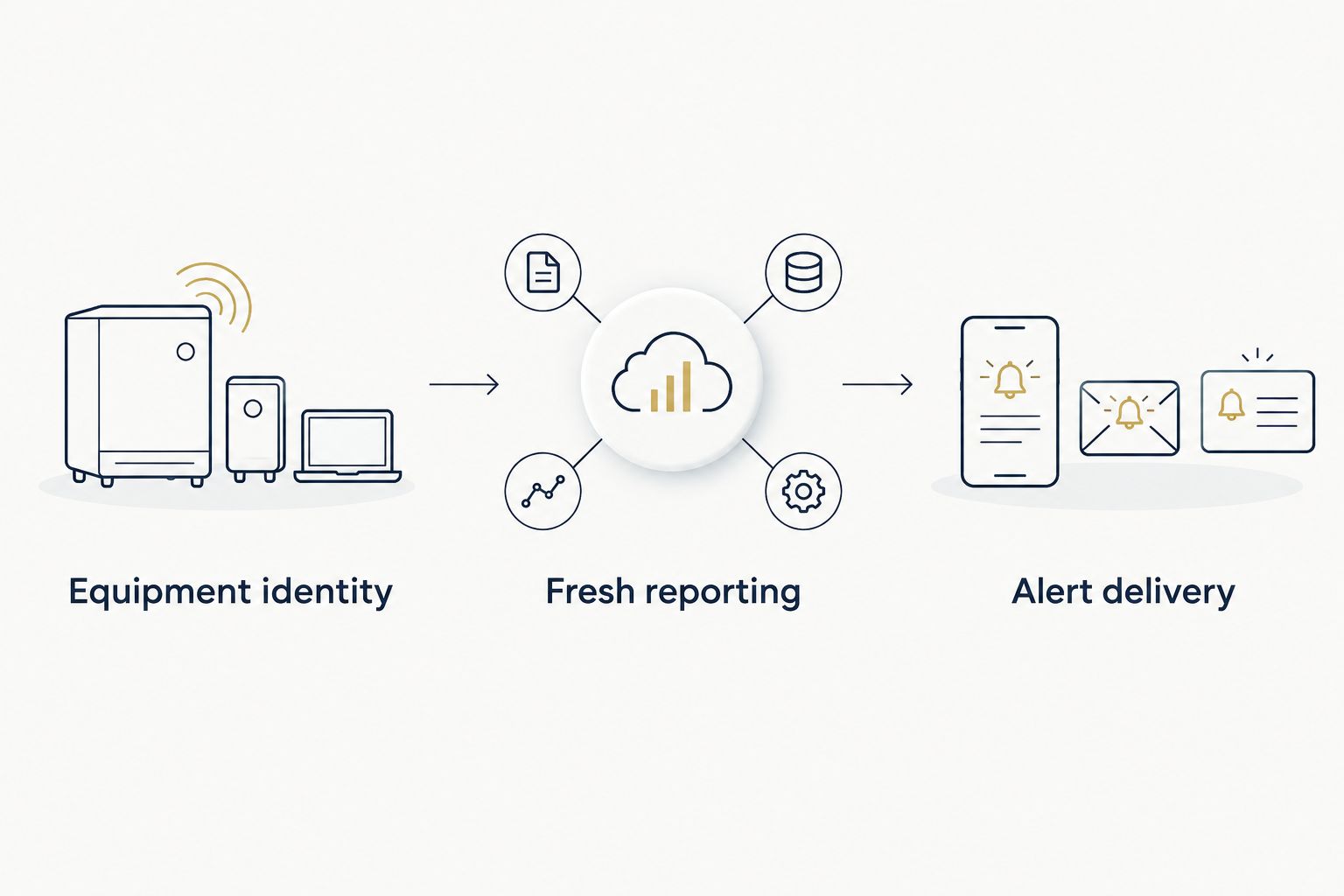
- Equipment identity: Compare the generator serial number in Mobile Link with the equipment label. For multiple properties, confirm the location before interpreting a status message.
- Fresh reporting: Inspect the latest communication or status information displayed for that device. Check the timestamp, not just the presence of a status card. A saved report does not prove the equipment is connected now.
- Alert delivery: Review the notifications offered by your account and equipment. Enable the relevant options, then allow Mobile Link notifications in your phone's operating-system settings.
- Confirm any email address or other notification destination shown in your account. If a supported test-notification function exists, use it. Otherwise, verify delivery against the next normal reported event rather than creating a fault.
- Compare the next routine exercise report with the generator's documented exercise schedule. Investigate a mismatch instead of assuming that account registration finished every part of setup.
Expected result: You have the correct equipment record, a fresh report, and a verified notification path. Record those checks on your 2026 maintenance sheet.
Mobile Link monitoring is not a substitute for checking generator readiness. A current connection can report a problem; it cannot repair that problem. Do not manufacture an outage, operate the transfer switch, or clear an alarm solely to test a notification.
Reconnect after a router or password change
A replacement router or changed wireless password creates an adjacent workflow: keep the equipment account and update the generator's network connection. Start here when monitoring worked before the network changed.
- Confirm that the existing generator record still has the correct serial number. Do not add a duplicate record to repair Wi-Fi.
- Check the replacement router's band and security configuration against the monitoring-device manual. Reusing an old network name does not guarantee that every setting is unchanged.
- Repeat the documented network-connection procedure for the installed hardware. Enter the new network information and complete the device's confirmation steps.
- Return to Mobile Link and inspect the latest report. Keep notification settings intact, but recheck phone permissions if you also replaced your phone.
Expected result: The existing generator record resumes reporting through the updated network.
A new phone alone does not require the generator to join a new Wi-Fi network. Sign in to the existing account first. Reconnect the generator only when its communication path actually changed.
Include a monitoring check whenever you replace network equipment during 2026. Router work is easy to overlook because the generator itself has not been serviced.
Troubleshooting
The generator is listed but remains offline
Separate registration from communication. Check the home's internet service, then verify the monitoring device's connection using its documented indicators or controller information. For cellular equipment, check activation and coverage through the supported troubleshooting process.
Do not repeatedly remove and re-add the generator. That does not correct a weak signal, incorrect password, or unactivated communication device.
Your network does not appear during setup
Check the wireless band required by the installed module. A device requiring 2.4 GHz cannot join a 5 GHz-only network. Also confirm that the intended network is broadcasting and reaches the generator location.
If you do not administer the router, ask the network administrator to check those settings. Do not weaken network security by trial and error.
Your phone leaves the temporary setup network
Some phones switch away from a wireless connection that lacks internet access. Stay on the device's temporary network for the configuration step if the hardware instructions require it, then restore your normal connection afterward.
If switching repeats, review the phone's automatic network-switching settings. Follow the setup instructions rather than disabling unrelated protections.
Mobile Link reports existing ownership
Check whether an installer, previous homeowner, or another account holder registered the generator. Use the manufacturer's account-recovery or ownership-transfer process and provide the requested equipment information.
Creating another email account does not settle equipment ownership. Resolve the account association before returning to connectivity troubleshooting.
The status updates but alerts do not arrive
Check both Mobile Link notification preferences and phone-level notification permission. Review focus or do-not-disturb settings, and check the configured destination for email alerts.
Confirm that the event you expect is included in your account's notification options. A working equipment connection and a working notification channel are different things.
Customize your workflow
Build monitoring into generator upkeep rather than treating it as a finished installation task. Keep your equipment identifiers, service records, and network-change notes together. After generator service or router work, check the latest report again.
Pair your app checks with standby generator maintenance for Port St. Lucie homeowners. App reporting does not inspect fluids, electrical connections, fuel supply, or transfer equipment.
Imperium Electric LLC provides licensed generator installation and electrical services for Treasure Coast residential and commercial customers. Use Generac support for account and app issues; use a qualified contractor when the problem involves installation, wiring, or equipment access.
Discuss your generator installation
Review generator installation and electrical service needs for your Treasure Coast property.
FAQ
How do I complete Generac Mobile Link app setup?
Add the correct generator to your Mobile Link account, connect its supported monitoring hardware, and verify a fresh status report. Then check notification preferences and your phone's notification permissions.
Does every Generac generator connect directly to Wi-Fi?
No; connectivity depends on the generator and installed monitoring hardware. Identify the equipment and follow its matching manual before choosing a Wi-Fi or cellular setup procedure.
Does Generac Mobile Link need a 2.4 GHz network?
Some Generac Wi-Fi monitoring equipment requires a 2.4 GHz network. Check the installed device's manual; a 5 GHz-only network will not work with hardware that requires 2.4 GHz.
Why does Mobile Link show my generator as offline?
Offline status means Mobile Link is not receiving current communication from the equipment. Check the relevant Wi-Fi or cellular connection separately from the account registration.
Do I need to register my generator again after changing routers?
Keep the existing generator record and update the monitoring device's network connection. Verify a fresh report after completing the documented reconnection procedure.
Can Mobile Link replace regular generator maintenance?
No; Mobile Link reports equipment information but does not perform maintenance or verify every part of the backup-power installation. Keep the generator's prescribed maintenance and inspection schedule.
Who should I contact if setup requires electrical work?
Use a qualified electrical contractor when setup involves wiring, electrical covers, or monitoring-hardware installation. Imperium Electric LLC provides licensed generator installation and electrical services on the Treasure Coast; direct account-ownership and app issues to Generac support.
One last thing
The timestamp matters more than the status screen's appearance. Before leaving a seasonal property, confirm that the generator has communicated recently and that alerts reach the phone you actually carry.
Add that check to your 2026 departure checklist. A generator record that looks familiar but contains stale information is not a completed monitoring workflow.