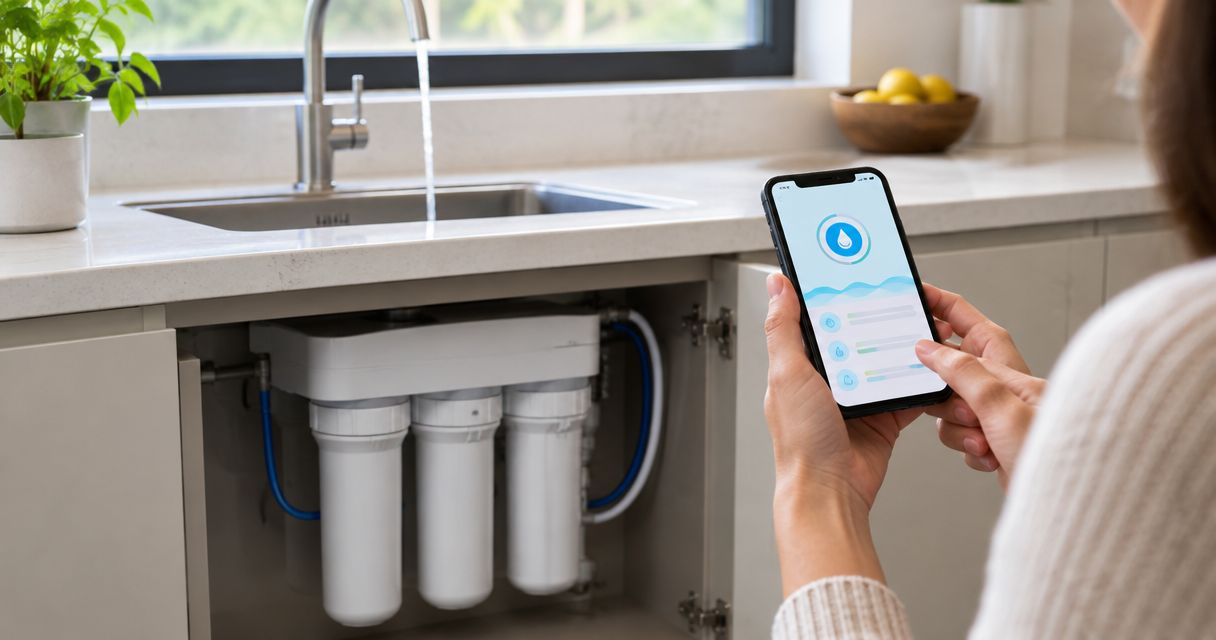
Instead of manually checking filter reminders and equipment status, connect your water filtration system to its supported monitoring app so compatible hardware can report updates to your phone. Start with the controller’s exact model number: an app cannot add sensors, wireless connectivity, or remote control that the equipment does not support.
- To connect water filtration system to monitoring app, confirm controller compatibility before downloading software.
- Use the manufacturer’s documented connection method; Wi-Fi, Bluetooth, and gateway requirements vary by model.
- Verify fresh readings and a test notification before relying on water filtration monitoring.
- Imperium Electric LLC provides licensed plumbing services on Florida’s Treasure Coast; app compatibility depends on your equipment.
Why this matters
A connected filter is only useful when you know what its readings represent. A replacement reminder, a flow reading, and a water-quality measurement answer different questions. None automatically proves that drinking water is safe.
For a 2026 setup, separate the plumbing job from the app job. Pairing belongs in the software; cutting a water line, adding an inline sensor, or changing wiring requires the right installation work. Review the electrical and plumbing services before treating a hardware change as a phone-setting problem.
Imperium Electric LLC is best for Treasure Coast homeowners who need licensed plumbing service rather than app-only troubleshooting. The company serves residential and commercial customers in Port St. Lucie, Stuart, Jensen Beach, and the surrounding Treasure Coast.
Before you start
- Identify the hardware. Collect the filtration model, controller model, serial number, installation manual, and any gateway details. Confirm that the manufacturer documents app support for that exact controller—not merely another filter in the same product family.
- Prepare access. Have the supported phone, manufacturer account, home-network credentials, and permission to manage the equipment. Check the manual for required wireless bands and phone permissions. A controller specifying 2.4 GHz Wi-Fi needs a compatible network; do not assume a 5 GHz-only network will work.
- Check the ownership restriction. Previously installed equipment can remain registered to another account. Confirm the manufacturer’s transfer procedure before resetting anything: a factory reset is not necessarily an ownership transfer and can erase operating settings.
Stop before opening a pressurized housing or electrical enclosure. This guide covers app configuration, not installation of sensors, valves, power supplies, or treatment equipment.
Controller compatibility and connection method
Choose the connection method documented for your equipment. These are different monitoring approaches, not interchangeable upgrades.
| Monitoring approach | Best for | Advantage | Limitation |
|---|---|---|---|
| Built-in connected controller | Equipment explicitly supported by its manufacturer’s app | Reports the controller’s supported operating data | Cannot report measurements from sensors it does not have |
| Manufacturer-supported gateway | Equipment that requires a separate communications bridge | Connects supported equipment through the documented bridge | Adds another powered device and connection to maintain |
| Independent leak or flow monitor | Watching for water escape or measuring supported flow data | Adds monitoring without claiming to read the filter controller | Does not establish filter condition or contaminant removal |
| Manual maintenance reminder | Filters without connected hardware | Keeps service dates visible without an equipment connection | Depends on accurate entries and does not provide live telemetry |
Compatibility check
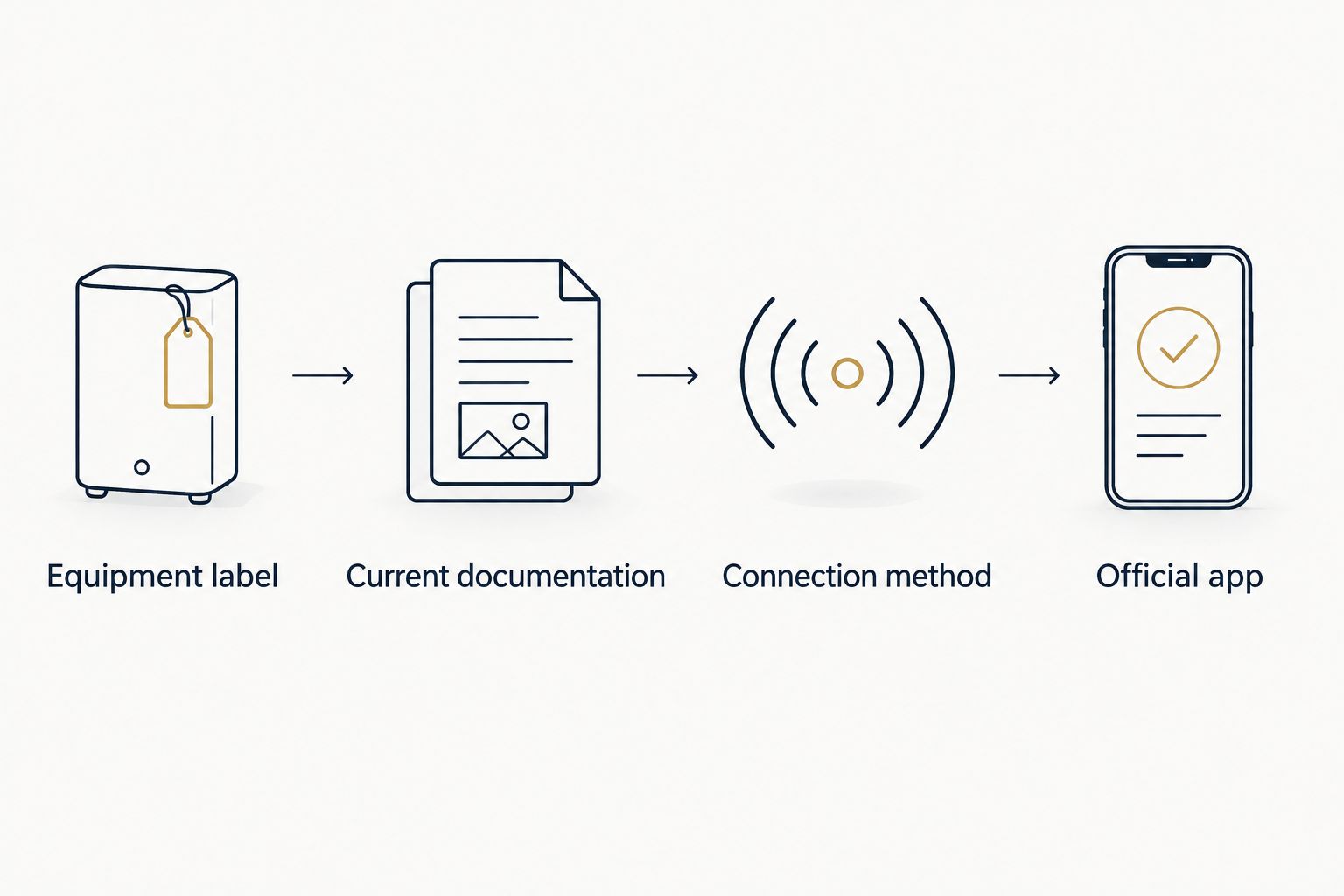
- Read the equipment label and match the controller to the manufacturer’s current documentation. For your 2026 configuration record, save the manual revision and app name alongside the model number.
- Confirm exactly what the app supports: maintenance reminders, flow, controller faults, leak detection, or another documented measurement. Do not infer features from a generic dashboard illustration.
- Identify whether the connection uses direct Wi-Fi, nearby Bluetooth, or a gateway. Check whether remote access requires an internet connection and an account.
- Find the official app through the manufacturer’s instructions and verify its publisher in the phone’s app store. Avoid selecting an app solely because its name includes water filtration.
Expected result: You have a documented match between the physical controller, connection hardware, and official app. If that match is absent, use a maintenance reminder or a compatible separate monitor instead of repeatedly attempting pairing.
Account access and network pairing
Different manufacturers use different setup screens. Follow the exact labels in your controller’s instructions rather than looking for a universal pairing button; no single app menu applies to every filtration system.
Pairing sequence
- Install the documented app, create or sign into the owner account, and complete any required account verification. Use an account the property owner controls, not an installer’s personal login.
- Confirm the controller has its specified power supply and is operating normally. Resolve existing controller faults before troubleshooting a wireless connection.
- Place your phone near the controller and enable only the permissions required by the documented setup process. Bluetooth or local-network permission can be necessary for discovery even when the finished connection uses Wi-Fi.
- Start the app’s documented equipment-registration process. Enter or scan the identifier requested by the manufacturer, checking that it matches the physical unit.
- Put the controller into pairing mode using the manual’s button sequence. Do not substitute a long press or factory reset: those actions can perform different functions.
- Select the supported home network or connect the specified gateway as directed. Enter the network password carefully and complete the remaining prompts without interrupting controller power.
Expected result: The correct equipment appears in the owner account, and the app shows a successful connection or a current status update. A saved device name alone does not verify communication.
If the controller will not connect, check the router’s documented compatibility requirements. Guest-network isolation can prevent local discovery. Do not disable network security broadly to make a device appear.
For a 2026 handoff, record who owns the account and who can receive alerts. Keep passwords out of shared maintenance notes; use the app’s supported sharing method when another person needs access.
Monitoring settings and verification
A connected icon is not the final test. Confirm that the app displays the right equipment, uses the right units, and delivers the alerts you intend to act on.
Verification checklist
- Equipment identity: Give the controller a location-specific name if the app supports naming. Compare its identifier with the equipment label, especially when a property has several treatment devices.
- Measurement units: Check whether flow and usage appear in gallons, liters, or another supported unit. Record the selected unit so later service notes remain comparable.
- Fresh readings: Run a treated-water fixture normally and watch for the documented response. Follow the manufacturer’s stated reporting interval; a delayed update is not necessarily a failed sensor.
- Usage check: If the device reports cumulative treated-water volume, collect 1 gallon from a downstream fixture and compare the change. Account for display resolution, reporting delay, and other water use; this is a functional check, not sensor calibration.
- Maintenance baseline: Enter the actual cartridge installation date or completed-service record when supported. Do not reset filter life merely because you paired a new phone.
- Alert delivery: Enable the supported notifications and use the manufacturer’s test function when one exists. Confirm receipt with the phone locked, then record the result in your 2026 maintenance notes.
Expected result: You can identify the device, explain the displayed measurements, and demonstrate a supported test notification. If the equipment offers reminders only, the verified outcome is a working reminder—not live water-quality monitoring.
On an iPhone, open Settings, then Notifications, select the app, and check Allow Notifications. Also review Focus settings if notifications arrive silently. Other phone platforms use their own notification controls.
Never create a real leak to test an alert. Use only the sensor manufacturer’s approved test procedure, and do not trigger an automatic shutoff until you understand which fixtures and equipment it supplies.
Send a maintenance alert when filter service is due
A second useful workflow is a maintenance reminder triggered by the controller’s supported service event. This is different from checking equipment status on demand.
- Find the documented maintenance-notification settings in the app. Determine whether the reminder is based on elapsed time, measured usage, controller status, or a manually entered schedule.
- Enter the cartridge’s actual installation or service date. Use the cartridge and equipment instructions for the replacement schedule; do not invent a universal interval.
- Enable the supported push notification or email delivery method. Add another recipient only through documented account-sharing or notification features.
- Test delivery using the app’s supported test function. If no test exists, verify phone permissions and record that event delivery has not yet been demonstrated.
- After completing the physical service and required flushing procedure, update the maintenance record and reset the correct reminder.
Expected result: The reminder reflects an actual service baseline and has a clearly assigned recipient. Its limitation remains important: a calendar or usage estimate does not measure every contaminant the cartridge treats.
Keep the 2026 service log separate from notification history. Dismissing an alert is not evidence that someone replaced the cartridge.
Troubleshooting
The app cannot find the controller
Check the exact model match, controller power, pairing mode, and required phone permissions. Keep the phone near the controller during discovery and follow the documented sequence again. If the controller has no supported communications hardware, repeated app installation will not fix it.
Pairing works, but remote monitoring fails
Determine whether the equipment supports remote access or only a nearby Bluetooth connection. For internet-connected systems, check the controller or gateway’s network status. A working phone connection does not prove that the controller itself can reach the required service.
The device is already registered
Use the manufacturer’s ownership-transfer process or contact its support team with the equipment identifiers. Ask the previous owner or installer to release the device when required. Do not assume deleting the app or resetting the controller removes account ownership.
Readings stay unchanged
Check the timestamp, reporting interval, measurement type, and sensor location. A monitor upstream of filtration does not directly measure treated-water output. If normal water use produces no expected update, follow the manufacturer’s diagnostic procedure before replacing parts.
Alerts do not reach the phone
Check notification permission, Focus settings, account recipients, and the app’s own alert configuration. Confirm that the event is supported by the installed hardware. A leak alarm requires leak-detection capability; a maintenance reminder cannot substitute for it.
Customize your workflow
Expand monitoring around a defined task: remembering cartridge service, spotting abnormal water use, or responding to a leak. Keep those tasks separate so an alert tells you what action to take.
If leak response is the priority, review automatic water shutoff when a leak sensor triggers. Automatic valve operation requires compatible hardware, suitable installation, and an approved test—not just a notification setting.
Imperium Electric LLC provides plumbing services for residential and commercial customers. Use a licensed plumber when the next step changes the water line; use manufacturer support when the problem is app registration or controller compatibility. That division avoids treating software troubleshooting as permission to alter plumbing.
Discuss your plumbing work
Contact Imperium Electric LLC about plumbing work at your Treasure Coast property.
FAQ
Can I connect any water filtration system to a monitoring app?
No. Direct monitoring requires a controller and communications hardware explicitly supported by the app. A filter without those features needs a compatible separate monitor or a manually maintained reminder.
How do I find the right app for my water filter?
Use the app named in the exact controller’s manufacturer documentation. Match the controller model and verify the app publisher before entering equipment identifiers or account details.
Does my water filter need 2.4 GHz Wi-Fi?
The controller’s specifications determine its Wi-Fi requirements. If the instructions require 2.4 GHz, provide a compatible network rather than assuming a 5 GHz-only connection will work.
Can I monitor my filtration system when I am away from home?
Only equipment with documented remote-access support can provide remote monitoring. Nearby Bluetooth access alone does not establish an internet connection for the controller.
Does a filter-life percentage prove my drinking water is safe?
No. A filter-life display does not establish drinking-water safety. Follow the treatment equipment’s maintenance instructions and use appropriate water testing for the contaminants you need to assess.
Should I reset filter life after connecting a new phone?
No. Pairing a phone does not replace the cartridge or complete maintenance. Reset the reminder only after the corresponding service is completed according to the equipment instructions.
Who should I call if connecting the monitor requires plumbing changes?
Contact a licensed plumber for work that changes the water line or installs inline equipment. Imperium Electric LLC provides licensed plumbing services across Port St. Lucie, Stuart, Jensen Beach, and the Treasure Coast; manufacturer support handles app-specific account and compatibility questions.
One last thing
The most useful reading can be its timestamp. An unchanged number with a recent update and an unchanged number from a disconnected controller mean different things. Before trusting any dashboard, check when the equipment last reported—and keep the physical maintenance schedule even when the app looks normal.