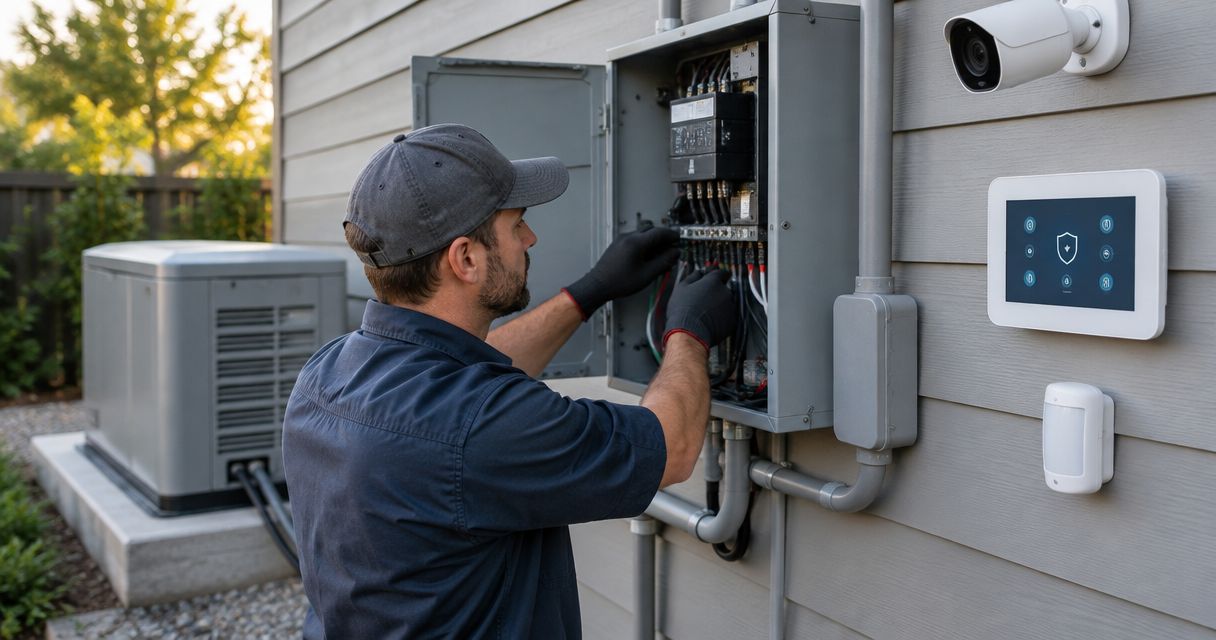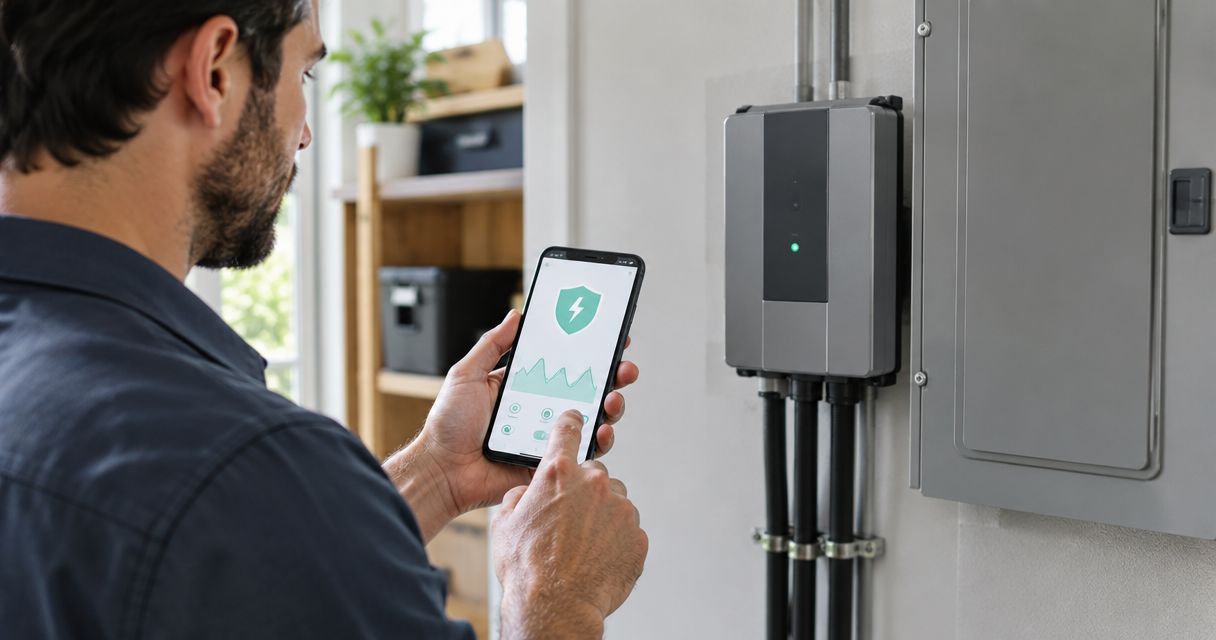
Instead of manually checking a surge protector’s status light, connect a manufacturer-supported monitoring interface to its approved app so you can receive the status alerts the equipment actually supports. You cannot connect a conventional whole-house surge protector to an app unless its manufacturer provides a compatible communication interface.
- To connect whole house surge protector to monitoring app, confirm manufacturer-supported connectivity before starting.
- Imperium Electric LLC is best for Treasure Coast homeowners needing licensed electrical service rather than app-only troubleshooting.
- Energy monitoring does not prove that a surge protector is functioning.
- Verify device status, notification delivery, and connection freshness separately.
Why this matters
A whole-house surge protective device limits transient overvoltage. An app reports information; it does not create surge protection or improve the device’s electrical rating.
For your 2026 setup, separate those jobs before buying hardware or downloading software. Start with the electrical basics in this guide to whole-house surge protection for Florida homes, then confirm whether your exact installed model supports remote reporting.
Imperium Electric LLC is best for Treasure Coast homeowners who need licensed electrical service, not just help pairing an app. The company serves residential and commercial customers in Port St. Lucie, Stuart, Jensen Beach, and the Treasure Coast; app compatibility still depends on your equipment manufacturer.
Before you start
- Gather the equipment information. Find the exact model, manufacturer’s installation manual, monitoring instructions, and any gateway or accessory identification. Use paperwork or an externally visible label; do not remove the electrical panel cover.
- Arrange account and network access. Have the approved app, an authorized owner account, your home network credentials, and access to any required gateway. Confirm that the app and accessories support your exact model, not merely another device from the same manufacturer.
- Check the hidden limitation first. A status light, smart electrical panel, or energy-monitoring app does not automatically provide surge-protector health data. If installation requires panel access, accessory wiring, or connection to status contacts, stop and use a licensed electrician.
Keep this boundary clear: the steps below cover compatibility checks, account setup, pairing, and verification. They do not cover electrical installation. Turning off a main breaker does not establish that every component inside a panel is safe to touch.
Choose the monitoring path your equipment supports
There are different ways to receive electrical information, but they do not report the same thing. Use the manufacturer’s documentation to identify which path applies before starting a 2026 app setup.
| Monitoring path | Best for | Advantage | Limitation |
|---|---|---|---|
| Manufacturer-supported connected surge protector | Owners whose exact model supports remote status | Provides the status information specified for that model | Requires the approved app, interface, and supported connection |
| Documented status-contact interface | Equipment with manufacturer-provided remote status contacts | Can pass a defined status signal to a compatible monitoring system | Requires compatible interface hardware and professional electrical assessment |
| Separate home energy monitor | Owners who want consumption or supported electrical measurements | Adds visibility into the measurements its documentation lists | Does not establish surge-protector health without a documented integration |
| Local status indicator | Owners whose protector has no supported remote interface | Allows the checks described in the equipment manual | Does not send remote app notifications |
Choose a supported status connection, not an energy dashboard that merely looks relevant. A current sensor measures current; it does not, by itself, determine whether a surge protective device needs replacement.
If the manual lists no remote interface, stop the pairing workflow. Ask an electrician to assess your existing protection and suitable monitoring equipment rather than improvising a connection.
Equipment and account configuration
Confirm compatibility
- Read the model identification from your records or an accessible exterior label. Match every suffix against the manufacturer’s documentation.
- Locate the monitoring section of the manual. Confirm whether connectivity is built in, requires a gateway, or uses documented status contacts.
- Identify what the system reports. Protection status, communication status, and recorded events are different information; do not assume the app provides all of them.
- Check the current app instructions for your 2026 installation. Confirm the supported phone operating system, account requirements, and accessory requirements.
- Record the approved connection method before proceeding. If no method is documented, do not substitute a generic smart-home integration.
Expected result: You can identify the exact equipment, its supported monitoring path, and the information the app is designed to show.
Prepare the owner account
- Obtain the app through the manufacturer’s official instructions. Avoid selecting an app solely because its name resembles the equipment brand.
- Create or sign into the account that will remain with the property owner. Complete any required account verification.
- Confirm whether the equipment is already assigned to another account. Resolve ownership transfer through the documented process before resetting anything.
- Keep identifiers and recovery information in your private property records. Do not share account passwords with contractors or tenants.
Expected result: The property owner controls the account and can recover access without depending on an installer’s personal login.
Button names vary by manufacturer and app version. Use the labels in your equipment’s current instructions; there is no universal surge-protector pairing button or settings menu.
Network and device pairing
Prepare the connection
- Check the supported network type in the manual. If the equipment requires 2.4 GHz Wi-Fi, use a compatible network; do not assume a 5 GHz connection is supported.
- Confirm that your phone has internet access and that you know the correct network password. Allow only the phone permissions required by the documented setup process.
- Check connectivity near the installed equipment without opening the panel or touching electrical components. A connection elsewhere in the house does not verify coverage at the device.
- If the system uses a gateway, complete the gateway’s documented setup first. Do not begin accessory wiring yourself.
Expected result: The required network or gateway is ready, and you have the credentials needed for the supported pairing method.
Pair the supported device
- Start the manufacturer’s device-enrollment procedure in the approved app.
- Select the exact supported equipment category or model identified in the manual. Do not select a similar-looking product to bypass an error.
- Enter pairing mode only through the manufacturer’s homeowner-accessible procedure. If that procedure requires opening electrical equipment, have the installer complete it.
- Supply the requested identifier or scan the equipment code when the instructions require it. Keep identification codes private.
- Complete network enrollment and wait for the app’s documented confirmation. Do not interpret a saved device name as proof of an active connection.
- Assign a descriptive location, such as Main panel, so alerts identify the correct equipment.
Expected result: The app identifies the correct device and shows the connection confirmation described in the manufacturer’s instructions.
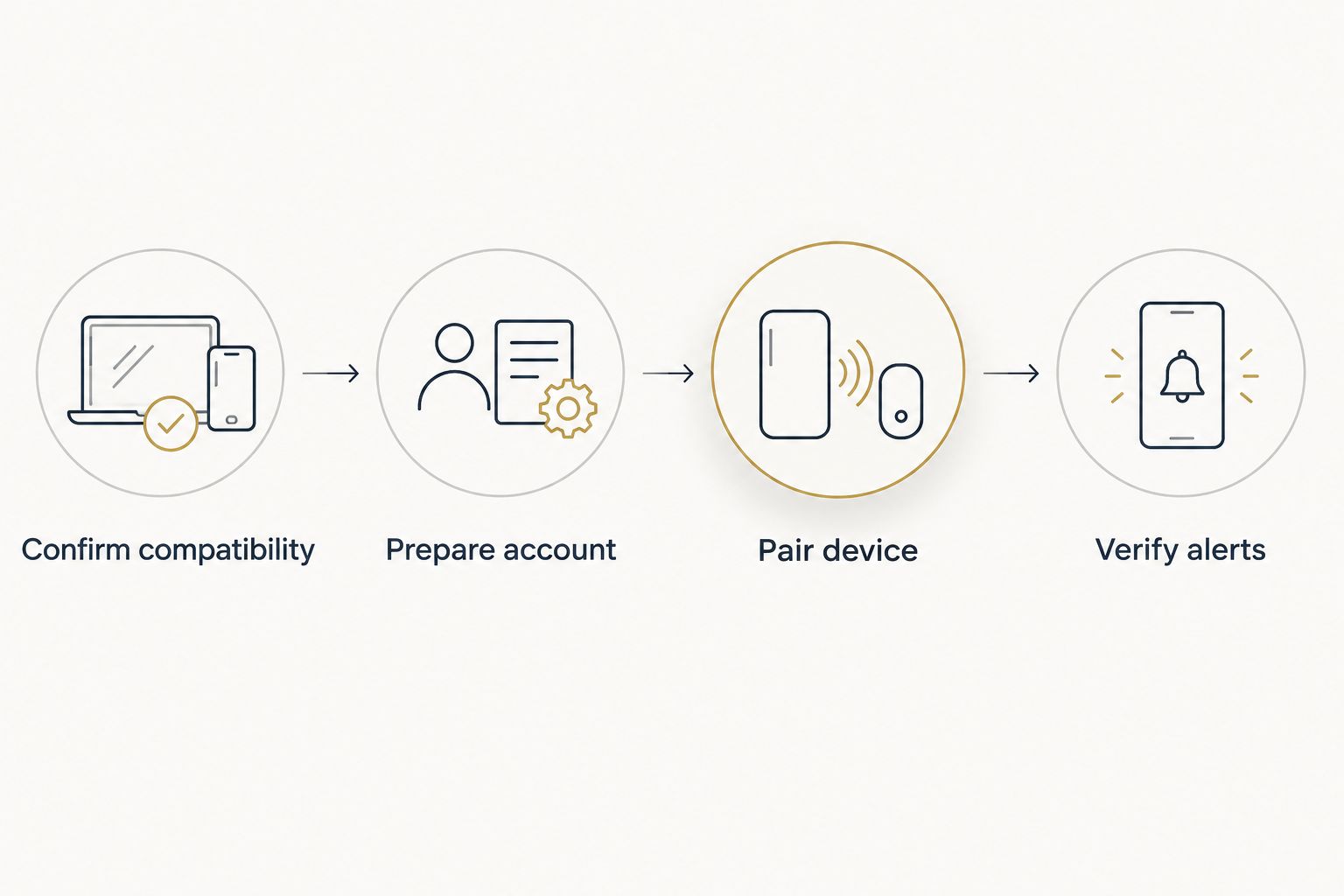
The setup sequence is compatibility first, account second, connection third, and verification last. Pairing cannot fix unsupported hardware.
Status and notification configuration
Verify alerts
- Read the device’s status explanation in the manual. Distinguish electrical protection status from communication status.
- Enable the supported protection-status and communication notifications you need. An app can only notify you about events its equipment and software support.
- Permit notifications for the app in your phone’s notification settings. Check whether notification summaries or focus settings delay delivery.
- Use the manufacturer’s documented notification test, if provided. Never create a surge, short circuit, or wiring fault to test an alert.
- Compare the app with the homeowner-accessible status indicator as directed by the manual. Check any displayed update time rather than trusting an old screen.
- Save the setup date and test result in your 2026 maintenance record. Note exactly what was tested: app delivery, communication, or a manufacturer-defined status check.
Expected result: You know what each displayed status means and have verified the available notification function without creating an electrical hazard.
A successful test notification proves delivery of that notification. It does not prove the protector’s electrical performance. Likewise, a connected device is not necessarily a healthy protective device; interpret each indicator according to its documentation.
For installation or electrical questions, contact Imperium Electric LLC with the model information and a description of the status shown. Do not send passwords or expose wiring to obtain a photograph.
Second workflow: notify another responsible person
A second workflow exists when the approved app supports shared access or multiple notification recipients. This is useful when someone else helps manage the property, but it does not add monitoring capabilities the equipment lacks.
- Confirm that account sharing is documented for your equipment and app.
- Invite the responsible person using the supported account-sharing process. Do not share the owner’s password.
- Assign only the access that person needs. Review whether the invitation permits viewing, configuration changes, or both.
- Enable the supported notifications on the recipient’s phone and run the documented notification test, if available.
- Agree on the response: who checks a communication problem and who arranges electrical service for a protection-status warning.
Expected result: Another authorized person receives the supported information through their own access, with a clear responsibility for responding.
Best for seasonal homeowners: Use documented shared access when someone local is responsible for checking the property. The limitation is unchanged: remote alerts depend on the communication path and the features your system supports.
Troubleshooting
The app cannot find the protector
Check model compatibility before repeating enrollment. A conventional protector without a supported interface will not appear simply because your phone is nearby.
For compatible equipment, confirm gateway readiness, the documented pairing mode, and required phone permissions. Do not repeatedly reset the device without understanding what a reset removes.
Pairing fails at the network stage
Recheck the password and supported network requirements. Guest-network isolation, router security settings, or weak coverage can prevent device communication.
Use the manufacturer’s network guidance rather than disabling router security broadly. If a gateway is required, troubleshoot its connection before enrolling the downstream equipment again.
The device is online, but alerts never arrive
Check both the app’s event subscriptions and your phone’s notification permissions. Confirm that the system supports the specific alert you expect.
Use the documented notification test if one exists. Do not assume silence means no electrical events occurred, especially if the app offers no event-history function.
The app shows offline after an outage
Check whether household internet service and the required router or gateway have returned. An offline message describes a communication problem; it does not, by itself, diagnose the protector’s electrical condition.
Compare any accessible local indicator with the manual’s instructions. Avoid unnecessary panel work or repeated breaker operation to restore an app connection.
The app reports a protection warning
Read the exact warning definition and follow the manufacturer’s service instructions. Clearing a notification does not repair a protective device.
Arrange licensed electrical assessment when the warning calls for service or replacement. If there is smoke, arcing, burning odor, or water around electrical equipment, stay clear and seek emergency assistance rather than continuing app troubleshooting.
Customize your workflow
Keep your 2026 setup record with the equipment manual, model identification, account owner, supported alerts, and response contact. Add the manufacturer’s inspection instructions to your property-maintenance routine rather than inventing a universal replacement schedule.
For a larger property, use distinct location names and review account access when responsibility changes. Keep energy-use monitoring separate from protection-health reporting unless the equipment documentation explicitly connects them.
Imperium Electric LLC provides electrical services alongside plumbing, HVAC, generator installation, and general contracting. App support remains manufacturer-specific; electrical service and software troubleshooting are separate tasks.
FAQ
Can I connect any whole-house surge protector to a monitoring app?
No. A whole-house surge protector needs a manufacturer-supported communication interface or documented compatible monitoring connection. A local indicator light alone does not provide app connectivity.
What app should I use for my whole-house surge protector?
Use the app specified for your exact model in the manufacturer’s current instructions. Another app from the same company is not automatically compatible.
Can a home energy monitor tell me whether my surge protector works?
A home energy monitor does not establish surge-protector health unless a documented integration provides that information. Energy measurements and protective-device status are different data.
Do I need an electrician to connect surge protection to an app?
Use a licensed electrician whenever the work requires opening a panel, installing electrical accessories, or wiring status contacts. Homeowner-accessible app enrollment is separate from electrical installation.
Will surge protection stop working if Wi-Fi goes down?
Loss of Wi-Fi is not, by itself, proof that surge protection has stopped working. Check the manufacturer’s instructions and accessible local status indicators to distinguish a communication failure from a protection warning.
How do I test a surge-protector app notification safely?
Use the manufacturer’s documented notification test if one is provided. Never create an electrical surge or fault, and do not treat a delivered test message as proof of electrical protection performance.
Can I receive surge-protector alerts while away from home?
Remote alerts require a monitoring system that explicitly supports remote notifications and a working communication path. Verify delivery through the documented test before relying on it while away.
One last thing
The most useful check is whether the information is current. A saved healthy-status screen is not evidence of a live connection; verify the update time or connection indicator your system provides.
Before closing your 2026 setup record, write down what the app cannot tell you. That boundary keeps a useful notification tool from becoming a false assurance about your home’s electrical protection.